What You’ll Need Before You Start
- Oracle VirtualBox: If you haven’t already installed VirtualBox, you can download it for free from Oracle’s official website. Make sure you download the version that corresponds to your operating system (Windows, macOS, or Linux).
- CentOS 9 ISO: You’ll need the CentOS 9 installation image. Download the ISO file from the official CentOS website or a trusted mirror. This image will be used to install CentOS onto your virtual machine.
- System Requirements:
- CPU: At least 2 cores for a smooth experience.
- RAM: A minimum of 2GB, though 4GB is recommended for optimal performance.
- Hard Disk: A minimum of 20GB, though more is recommended for additional software and data storage.
Step 1: Install Oracle VirtualBox
- Download and Install VirtualBox: Go to the official VirtualBox website and download the installer for your operating system.
- Set Up VirtualBox: Follow the on-screen instructions to install the software. Once installed, launch Oracle VirtualBox to begin creating your virtual machine.
Step 2: Create a New Virtual Machine
- Open VirtualBox and click on the New button to create a new virtual machine.
- Name Your VM: For example, “CentOS 9”. Choose Linux as the type and Red Hat (64-bit) as the version (since CentOS is based on RHEL).
- Assign Memory: You’ll be prompted to allocate RAM for your virtual machine. Assign at least 2GB (though 4GB or more will give you better performance).
- Create a Virtual Hard Disk: Select Create a virtual hard disk now, and choose the VDI (VirtualBox Disk Image) format. Choose Dynamically allocated for flexible storage size. Allocate at least 20GB for the hard disk.
Step 3: Mount the CentOS 9 ISO
- Settings: Once your virtual machine is created, click on Settings, then navigate to the Storage tab.
- Load the CentOS 9 ISO: Under the Controller: IDE section, click the empty disk icon. On the right, click the disk icon next to Optical Drive, and select Choose a disk file. Locate and select the CentOS 9 ISO you downloaded earlier.
Step 4: Start the Virtual Machine
- Launch the Virtual Machine: Click the Start button in VirtualBox. The VM will boot from the CentOS 9 ISO, and you’ll be greeted with the CentOS installation screen.
Step 5: Install CentOS 9
- Choose Your Language: Select your preferred language and click Continue.
- Set Your Timezone: Choose the appropriate time zone for your location.
- Partition Your Disk: VirtualBox will automatically create the necessary virtual disk partitions for CentOS 9. You can leave the default settings or configure partitions manually, depending on your needs.
- Set the Root Password: Create a strong root password, which will be necessary for administrative tasks.
- Create a User Account: It’s also a good idea to create a regular user account for everyday use (besides the root account).
- Begin Installation: Once all settings are configured, click Begin Installation. This will start the process of copying files and installing CentOS 9 on the virtual machine.
- Complete Installation: The installation will take several minutes. Once finished, you’ll be prompted to reboot the system.
Step 6: Post-Installation Setup
- Remove the ISO from the Virtual Drive: After installation, be sure to remove the CentOS 9 ISO from the virtual CD/DVD drive to prevent booting from it again. You can do this by going back to the Storage settings and removing the ISO.
- Login to CentOS 9: Once the system reboots, log in using the root or user account you created during installation.
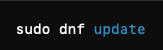
- Update Your System: After logging in, it’s always a good idea to run a quick system update. You can do this by running:sqlCopy code
sudo dnf updateThis will ensure your system is up-to-date with the latest patches and security fixes.
When booting CentOS 9 on a virtual machine using VirtualBox, users commonly encounter several issues that can hinder smooth operation. Below are some of the most common errors and their solutions:
- VirtualBox Guest Additions Issues: Many users face difficulties when installing VirtualBox Guest Additions, particularly with CentOS 9. Errors like “kernel configuration is invalid” may appear. To resolve this, updating to VirtualBox version 7.0.11 can fix kernel compatibility issues. If you’re using an older version (like 7.0.10), consider upgrading to the latest version or applying patches provided in forums ComputingForGeeksVirtualBox Forums.
- Display or Resolution Problems: After installation, users often face screen resolution issues in CentOS 9 on VirtualBox. This can usually be resolved by installing the latest VirtualBox Guest Additions. If that doesn’t work, try adjusting the display settings in the VirtualBox configuration (e.g., increasing the video memory allocation or enabling 3D acceleration)VirtualBox Forums.
- No Bootable Medium Error: If you’re encountering a “No Bootable Medium” error, make sure that the CentOS ISO is correctly mounted in VirtualBox. Verify that the ISO file is placed in the correct boot order, and ensure that the virtual machine is configured to boot from the ISO or the correct virtual disk VirtualBox Forums.
- Kernel Module Compatibility: CentOS 9 may face issues with kernel modules (especially for newer kernels). To troubleshoot, ensure the proper kernel headers are installed on your VM, and run
yum install kernel-develbefore attempting to recompile modules VirtualBox Forums. - Performance Problems (Slow Boot): VirtualBox’s default settings can sometimes cause CentOS to boot slowly. You can improve performance by allocating more CPU cores or memory to the virtual machine or by disabling unnecessary startup services in CentOS to reduce boot time ComputingForGeeks.
It is not uncommon for CentOS 9 ISO files to fail to load at boot, causing issues when starting the virtual machine. Below are some common causes and fixes for this issue:
- Incorrect Boot Order: One of the most frequent reasons for the ISO not loading is an incorrect boot order in the VirtualBox settings. If the boot priority is set incorrectly, the VM might try to boot from a virtual hard drive or another device before the ISO. To fix this:
- Open the VirtualBox settings for your CentOS VM.
- Go to System > Motherboard tab and ensure that the Optical Drive (where the ISO is mounted) is listed first in the boot order.
- ISO Not Mounted Properly: If the ISO isn’t correctly mounted in the virtual optical drive, the VM won’t boot from it. To resolve this:
- In VirtualBox, go to Storage.
- Under the Controller: IDE section, select the empty disk icon, and then on the right-hand side, click the Disk icon next to Optical Drive to choose the correct CentOS ISO file.
- Corrupted ISO File: A corrupted or incomplete ISO download can also prevent the system from booting. Ensure that the ISO file was downloaded completely and is not corrupted. You can verify the checksum (MD5, SHA1, SHA256) of the ISO file against the one provided by CentOS to ensure its integrity ComputingForGeeks.
- Incompatible ISO Version: Some versions of VirtualBox might not be fully compatible with the CentOS 9 ISO. Ensuring you are using the latest version of VirtualBox (and updating VirtualBox Guest Additions) can help solve compatibility issues. Some users have reported success by using different CentOS ISO images (e.g., minimal vs. full install) VirtualBox Forums.
- VirtualBox Settings: Ensure that the correct version of the OS is selected during VM creation. If VirtualBox is configured to use a wrong OS type (e.g., setting “Linux 2.6” instead of “Red Hat (64-bit)”), the ISO might not load properly. Verify the VM settings and change the OS type to match CentOS 9 VirtualBox Forums.
CentOS 9 and Virtual Box and Mac OS issues.
There are compatibility challenges when running CentOS 9 on Oracle VirtualBox on newer Macs, particularly with Apple Silicon (M1, M2, M3). These chips use ARM architecture, which conflicts with the x64 architecture required for VirtualBox and certain guest OS versions like CentOS, which were traditionally designed for Intel-based machines. Most virtualization platforms on MacBook Pro M3, such as VirtualBox, are limited to running ARM-based virtual machines natively
Users may encounter problems running CentOS 9 as a virtual machine on a MacBook Pro M3, especially with the VirtualBox kernel module not being compatible with the newer ARM-based systems
VirtualBox Forums. While some workarounds exist like using UTM for ARM emulation. these might not offer the same performance as VirtualBox’s native x64 virtualization.
If you’re set on running CentOS 9 in a VM on a MacBook Pro M3, consider using other solutions optimized for ARM, such as Parallels, which supports ARM-based OS guests
Apple Support Communities. For more advanced virtualization, you could explore running VMs through VMware Fusion or using tools like UTM, but note that these may come with performance trade-offs when emulating x64 architecture sloopstash.
You may also want to explore switching to a VM platform like VMware or UTM if VirtualBox proves too incompatible.
 Welcome to my cybersecurity learning journey.