First, I want to start mentioning the differences between 2.4GHz, 5GHz, and 6GHz spectrum. The protocols and compatible technology is referenced as 802.11b, 802.11a, 802.11g, 802.11n, 802.11ac, and 802.11ax or Wi-Fi 1, 2, 3, 4, 5, 6, and 6e.
The 2.4GHz frequencies in home networks are mostly used for IoT devices and in some cases depending on the wireless coverage it can also be used as an alternative frequency available for when the 5GHz signal is out of range. This frequency is frequently used to provide wireless network access to surveillance cameras, light bulbs, smart home appliances, and even wireless Hi-fi sound systems.
You can think about Wi-Fi as it was a drop of water crashing against a bigger body of water. As the drop touches the water, some waves will be produced. The same happens to a signal broadcasted by a router or access point. The waves’ frequency is measured in Hz

The signal transmitted on the 2.4GHz band is labeled as follows: IEEE 802.11b-1999 o 802.11b. This name was given by an organization so that we can reference it when needed. What the average home Wi-Fi user needs to know about it is that their phones or tablets need to be connected to this frequency in order to set up any smart home device that is only compatible with this frequency before even start following the prompts included in each manufacturer’s app.
As far the wireless channels recommended, here is a screenshot showing all the channels available on the 2.4GHz band:
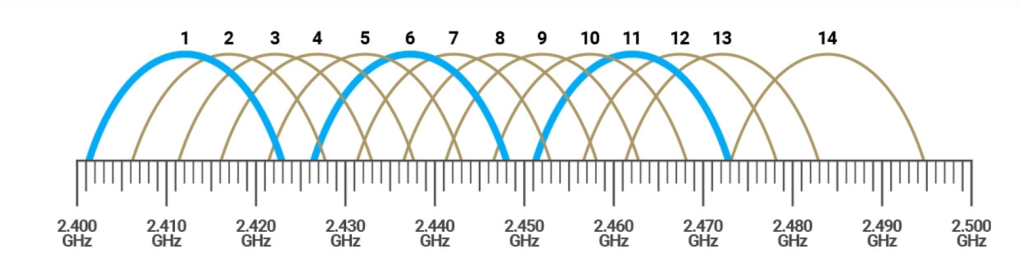
Why is this important? Well, it matters because if a network administrator configures an access point to operate on the light-blue highlighted channels, the connection performance will be great.
Network gear that allows their users to separate their network wireless bands in different SSID Wi-Fi setups or make it easy for the user to steer a phone or a tablet over to the 2.4GHz band with a single SSID setup will make smart home appliances easy to configure and troubleshoot.
The higher the frequency, the lower the wave length. In other words, the lower the frequency, the bigger the wireless coverage range. Thus, the higher the frequency, the faster the data transmission. For this reason, it is always recommended to make sure video streaming devices are connected either to the 5GHz or 6GHz spectrum.
Regarding the recommended channel configuration, it is always recommended to keep this setting in auto mode. However, and in some cases, it all depends on the interference levels on a given location. For this reason, I always recommend download inSSIDer. This program is great for checking the surroundings in order to find interference levels and possible Pineapple devices trying to violate your privacy.
Is it worth it upgrading your Wi-Fi gear to Wi-Fi 6 or 6e? Please check the following video by Linus Tech Tips
So, instead of adding more antennas to a Wi-Fi 5 access point or router, engineers decided to develop a better protocol to make data transmission more efficient. Wi-Fi 6 lowers latency and delivers data more efficiently using the same existing wireless spectrum. All with the purpose of eliminating buffer bloat affecting multiple devices downloading content at the same time within a given wireless network.
With the WPA3 encryption method, a new vulnerability was found on what they call dragonfly handshake attack. Please feel free to check the following video by zSecurity
For more information about how to capture unencrypted data on your personal network, feel free to check the following video by Hak5
In case you are wondering about Wi-Fi 6e and the new features included in it, here is another interesting video about it by ThioJoe
Here are the best wireless access points for home usage out there:
Amazon eero Pro 6E mesh Wi-Fi System
ASUS ZenWiFi Pro AXE11000 Tri-Band WiFi 6E Mesh System ET12 2PK
TP-Link Deco Mesh WiFi System(Deco M5)
Based on comments posted by multiple users, and also because I have tested the products my self, here are some robust networking gear that requires to know a little bit more about networking. Note that these devices will require a managed switch and, why not, a robust firewall in order to take full advantage of all their features.
Aruba Instant On AP22 (R4W01A)
Ubiquiti UniFi 6 Pro Access Point | US Model | PoE Adapter
Cisco Business 150AX Wi-Fi 6 2×2 Access Point 1 GbE Port – Ceiling Mount, PoE Injector Included
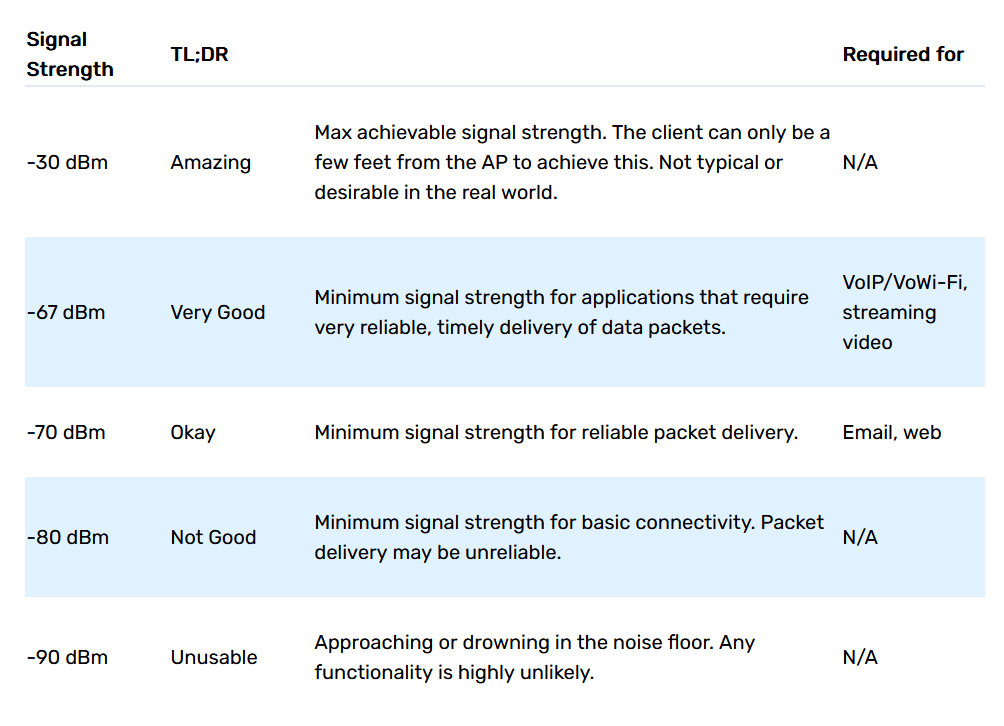
When it comes to wireless networking troubleshooting, you need to focus on your access point’s placement. First, we will talk about the RSSI or “Received Signal Strength Indicator”. If you want to dive deep into this, please check this article by metageek.
Now, let’s talk about wireless channel congestion. What is network congestion? Network congestion occurs when a network is overrun with more data packet traffic than it can cope with. In order to prevent this issue from happening, you can try placing your access points at least 20 feet away from other electronics, avoid placing the nodes behind furniture, cabinets, glass materials, and specially away from other electronics that operate over the same spectrum broadcasted by the access point. Devices such as microwaves, air conditioners, baby monitors, and wireless surveillance systems that operate on a parallel signal can generate interference.
In order to make sure your Wi-Fi signal is rock solid, make sure you only have one SSID broadcasted by a single access point or multiple access point system that can extend the same wireless network instead of having multiple access points from different vendors that are not compatible with each other, and to make it even worst are broadcasting the same SSID at the same time within the same premises. This problem reminds me of what it is known as wireless evil twin attack. Feel free to find more information about it in the following video by Null Byte.
The best way to prevent and even block this kind of attacks, I always prefer to use a VPN service either hosted by a 3rd party company, or even set up my own VPN at home. A virtual private network is basically a tunnel that allows a wireless client to encrypt the data transmission. The tunnel entrance can be configured at a client level and also at a router level. It all depends on what the network admin and the user are looking for. The exit of the tunnel, can be located within private premises, and depending on the VPN provider’s servers location it can be within the same country, or the user can have multiple locations to choose from worldwide.
When it comes to self-hosted VPN configuration, I always prefer to go with pfSense, or Cisco AnyConnect. However, home routers such as Netgear are also able to provide users with this useful feature in case wireless connection privacy becomes a concern. As far as VPN service providers, here is a list including some of the most popular services open to the public:


What you need to know about your VPN provider is the same as your internet service provider, they will know as much information about you as you let them know.
Nowadays, one can have a SIM card broadband package as a private travel Wi-Fi router because of its convenience and portability, here you will find an interesting video about the best portable routers available out there by Review Genesis.
Always remember to check the technical specifications and the firmware release notes to have a better understanding of each device functions and vulnerabilities.
 Welcome to my cybersecurity learning journey.